Many websites now offer passkey login. If you haven’t tried setting one up, you should. Using a passkey is more secure and convenient, but don’t completely ditch your strong password and 2-factor authentication (2FA) just yet, except for Vanguard.
What’s a Passkey?
From an end user’s point of view, I think of a passkey as a username and a password combined into one object. Presenting this key lets you access your account.
Logging in with a passkey is more secure than using a password and a 2FA code because, by design, you can’t read or remember the passkey. You can’t give it away to a fake website or an imposter over the phone. You only store your passkey somewhere. I think of this place as a key locker. The key locker recognizes the door. It won’t present the key unless you’re on the right website.
A passkey has two halves. The website only has one half of your passkey. Hacking the website can’t reveal the other half. Having only the website’s half isn’t useful to thieves. And because you can’t reuse a passkey, losing a passkey for one website doesn’t affect your accounts on other websites.
Passkeys are inherently more secure than passwords and 2FA codes because they remove common human weaknesses (simple passwords, reusing passwords, or giving away passwords or 2FA codes to phishing or imposters).
Storing Passkeys
You need a place to store your passkeys. This place also presents the key and opens the door for you.
The good news is you have many choices in where to store your passkeys. The bad news is that having many choices can be confusing, and you may forget where you put your passkeys. It’s better to establish a coherent strategy before you start creating passkeys.
Multiple Passkeys for the Same Account
A big shift between passwords and passkeys is that you can have multiple passkeys for the same account, whereas you only have one password for each account. Knowing this difference upfront helps you get a better picture.
You can choose to create only one passkey per account and use it across multiple devices, as you do with passwords, but you don’t have to. Creating multiple passkeys for each account works perfectly well. You can have one passkey on a computer and another passkey on a mobile device for the same account.
Many people prefer to create multiple passkeys per account for redundancy. If they don’t have access to one passkey or it doesn’t work for some reason, they can use another passkey to log in and create new passkeys if necessary.
Hardware Security Keys
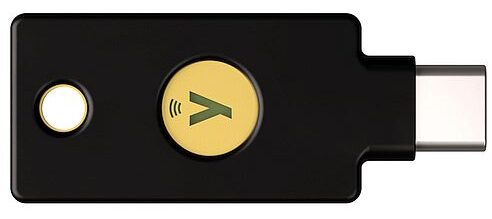
I store passkeys for my most important accounts on hardware YubiKeys. Passkeys stored on a hardware security key are bound to the physical hardware. They don’t go to the cloud. Accessing the passkeys requires physical access to the hardware, which doesn’t have Internet access and can’t be hacked remotely. I put passkeys for each account on at least two YubiKeys for redundancy, and I don’t take my YubiKeys outside of my home.
A downside to storing passkeys on YubiKeys is that each YubiKey has only limited storage space. My older YubiKeys can store up to 25 passkeys each. Newer hardware can store up to 100. I use YubiKeys only for financial, email, and other critical accounts to preserve the precious space.
Using a YubiKey as 2FA isn’t the same as storing passkeys on it. A passkey includes the username and the website. That information must be stored. When you use a YubiKey as 2FA, the website already knows your username; you don’t store anything on the YubiKey. You can use the same YubiKey as 2FA on an unlimited number of websites.
KeePassXC
I use KeePassXC and its browser extension to store passkeys for non-critical sites. I like KeePassXC because it uses only a local file. Nothing goes to the cloud. It doesn’t sync easily across multiple devices, but I accept that as a trade-off because I primarily use only one device anyway.
I temporarily disable KeePassXC’s browser extension when I need to store passkeys on YubiKeys for critical websites. Otherwise the browser extension takes over and wants to put the passkey in KeePassXC.
Cloud Sync
Apple Passwords, Google Password Manager, and third-party password managers (1Password, Bitwarden, Proton Pass, …) can all store passkeys in the cloud and sync across multiple devices. Pick your allegiance if you prefer to sync your passkeys.
If you only use Apple devices, store passkeys in Apple Passwords. If you use Chrome and Android everywhere, use Google Password Manager built into Chrome. Mix and match with multiple passkeys per account if you access your accounts on both Apple devices and Chrome/Android. If you don’t want to be tied to either Apple or Google, use a third-party one.
Be sure to protect access to your passkey vault when you choose to store passkeys in the cloud. Apple, Google, 1Password, Bitwarden, and Proton all support securing the account with YubiKeys.
Windows Hello
Windows Hello on a Windows computer can also store passkeys. It’s secure, but it’s not portable, because passkeys stored in Windows Hello are bound to the PC hardware. If your computer dies or you upgrade to a different computer, you can’t export your passkeys out of Windows Hello.
If you store passkeys in Windows Hello, those shouldn’t be your only passkeys. Create another set of passkeys and store them elsewhere.
This website has screenshots for how to access different storage options after you decide where you’d like to store your passkeys:
Login Security Demystified – Where passkeys live
Keep Passwords and 2FA
After you create passkeys for an account, still keep your passwords and 2FA, except for Vanguard.
Most websites offer passkey login as only another option, not a complete replacement for logging in with a password and 2FA. They don’t eliminate passwords and 2FA because not everyone uses passkeys, and everyone already has a password. You must log in with your password first before you create a passkey. You may choose to always log in with a passkey afterward, but hackers can still reset your password and log in with a new password.
Therefore, as long as the password login path exists, you still need to protect your password and use the strongest form of 2FA.
Lock Credentials at Vanguard
Reader Dean gave me a heads-up that Vanguard introduced a “Lock Credentials” option to block password login and password reset after you register at least two passkeys. It’s under “Profile -> Security Profile -> Username and password.” If you enable this option, you’re telling Vanguard not to recognize or reset your password because you will always log in with a passkey.
This is a great option. It blocks a vulnerable path to your account. With multiple passkeys, if one passkey doesn’t work for some reason, you can still log in with another. After you log in, you can remove the non-functioning passkey and create a new one.
***
Passkeys may feel like another thing to track, but they offer tangible benefits, especially for your financial and email accounts (see previous post PSA: Secure Your Email Account to Prevent Wire Fraud). Setting the option to block passwords entirely makes it better. I wish more websites would follow Vanguard and offer this option.
For more information on passkeys and related topics, please read the new book from Mike Piper, CPA, Household Cybersecurity: A CPA’s Guide to Protecting Your Accounts and Personal Information.
Learn the Nuts and Bolts
I put everything I use to manage my money in a book. My Financial Toolbox guides you to a clear course of action.
Eric L Gold says
Fidelity (and others) will not allow a passkey as a second factor after e.g. a username/password pair. U2F has been deprecated, and Fidelity only supports Discoverable Credentials.
I realize that a passkey is all the rage these days because of its resistance to phishing, but I still want a required second method/second device independent of the hardware key to harden my system against key theft + PIN cracking.-I’ve decided to leave my Yubikey somewhat out in the open at home for convenience. This is sub-optimaal, which is why I want the other independent method. It is not “terrible” because PIN attempts are limited to 8, home burglary as the prelude to digital robbery is rare, and I have a window of time to kill the passkey remotely before the PIN is cracked.
—–
As an aside, people looking to keep their accounts safe would do well to avoid session hijacking from malware on the computer. The front-line defense is to always log-out of the financial website, then close the tab. The browser should be hardened by disallowing cookies to hang around after the session is closed. An interesting gotcha can happen with logins to US Gov websites that rely on login.gov or ID.me for authentication. Here two websites are involved, so you have to make sure that the session is killed on each website. After I kill the irs.gov session e.g., I go to ID.me and confirm that I am not still logged in there.
Harry Sit says
I go by the theory that thieves who break into my home aren’t hackers, and hackers don’t bother coming to my home. Burglars don’t know what a YubiKey is. They won’t take it. Hackers use software to cast the widest net. Burglary is too labor-intensive and unscalable for them.
JT says
Ah…”I’ve decided to leave my Yubikey somewhat out in the open at home for convenience” now it makes sense. ☺
Gail says
“Vanguard introduced a “Lock Credentials” option to block password login and password reset after you register at least two passkeys.”
Question – Do I have to register two passkeys on the laptop, or does this mean 1 passkey on the laptop and 1 passkey on your phone?
Harry Sit says
Vanguard doesn’t know or care where you store or use your passkeys. They want two passkeys before they let you block off passwords only because they want you to still have a backup alternative in case you lose access to one passkey. Your two passkeys can be on two YubiKeys, or one in Apple and one in Google, one in Google and one in KeePassXC, etc.
Steve says
I found this Youtube video by AskLeo helpful in understanding passkeys – “How Passkeys Work (A No-Tech Version)”: https://youtu.be/E6Q-Q3rqmrk
(The same channel has a couple other, more detailed videos.
Blue Skies says
Harry, thanks for a very timely and useful article! Happy Thanksgiving to you and yours!
Mark says
Since I’m not to tech savvy, this is a little confusing to me. I presently use Bitwarden for my passwords. Do these passkeys supersede the passwords in Bitwarden? What happens when a site says my password has / is expiring and I need a new one?
Harry Sit says
You can treat them as superseding your passwords, but the sites usually still honor the passwords if someone presents them (except when you enable the option at Vanguard or another site that offers a similar option).
If you always log in with a passkey, you won’t see the password expiration message.
Mark says
Thanks for your reply. Follow-up question. In case of my death or incapacitation, I have a password protected file that I keep on my computer and in a safety deposit box that has all my username / login info. Will passkeys eventually make that obsolete?
Harry Sit says
Other people aren’t supposed to log in to your financial accounts as you after your death or incapacity. Information about where you have accounts and the account numbers are useful, but your Power of Attorney or executor shouldn’t use your login info or passkeys. Your POA should go through the process to establish access to your accounts under their own login or passkeys. Your beneficiaries or executor should also work with the institutions to have your accounts divided and transferred to different names.
Eric L Gold says
No …. but consider that the passkey claim to fame is phishing resistance. Suppose you go to a bank site, and find that the passkey does not work. Will you shrug your shoulders and use your username/password instead ?
Harry Sit says
Passkey not working should make one stop proceeding. Some people change their password to a long random string and intentionally throw it away after they create multiple passkeys (but still keep 2FA to guard against password reset).
Paul Elliott says
I am still confused about passkeys. When I agree to set up a passkey, I make up a four digit code and a passkey is born. Can I use the same four digit code with all my vendors or do I need to make sure they are all different? Does it matter if I use the four digit code multiple times?